Microsoft Clarity is a useful way to see how people interact with your website. I’ve been using it since it first came out in 2020, but ignored or overlooked something that happened a year ago, and that is a change to how Clarity handles cookie consent. While setting up analytics for The Connected Stack, I figured I should look in to this in more depth to understand what change was made, and how it could significantly impact the way in which recordings are stored for visitors from specific parts of the world. If you use Clarity on any of your sites, and are not sure what I am referring to, please make sure you check this out to make sure you are getting the full picture when reviewing your visitor journey recordings!
How Cookie Consent Affects Microsoft Clarity Recordings
Microsoft began enforcing consent signal requirements on 31 October 2025 for visits originating from the European Economic Area, the United Kingdom and Switzerland. Clarity uses IP address-based geolocation to determine user location. A valid consent signal is needed for full functionality in those regions. Without consent, Clarity can operate with limited tracking, but it does not use cookies to persist session data. Instead, it assigns a unique identifier per page view. That matters because the cookies are what allow Clarity to connect activity across pages.
Imagine someone lands on your homepage, opens an article and then visits your About page. Without the consent needed to persist the session, those page views may appear as separate recordings rather than one connected journey. Looking at an individual recording could therefore give you an incomplete picture of the visit. This does not mean every single-page recording is a consent problem. People do visit one page and leave! But it does mean that seeing recordings arrive is not enough to confirm your consent setup is working as intended.
A Cookie Banner Needs To Communicate The Choice
Adding a banner to your website is only part of the process. Clarity also needs to know what the visitor selected. Microsoft provides the Clarity Consent API V2 for this. Your website collects the choice, then passes it to Clarity using consentv2. The API supports separate values for analytics storage and advertising storage, so accepting analytics does not have to mean accepting advertising too.
For example:
window.clarity("consentv2", {
  analytics_Storage: "granted",
  ad_Storage: "denied"
});
This grants analytics storage while keeping advertising storage denied. The API does not create a banner or remember the visitor’s choice for you. Those are the pieces you need to provide yourself, or obtain through a Consent Management Platform.
Do You Need A Consent Management Platform?
A Consent Management Platform, or CMP, can collect preferences and communicate them to your tracking tools. Some offer free plans, while others charge depending on the features you need or the size of your website. There are good reasons to use one, particularly when you have several tracking services, advertising tags or more complex requirements. I’ve used CookieYes and CookieBot in the past on other sites, and both have pros and cons to them. However, for a simple website, you may prefer a small custom implementation without another subscription.
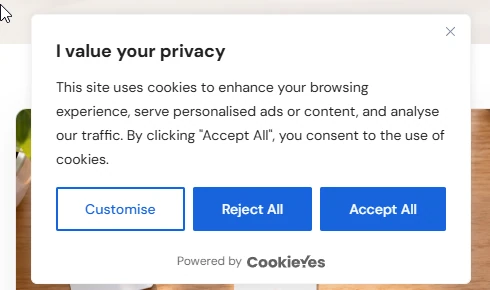
That is the approach I took for The Connected Stack. My website uses Astro, and Clarity is installed through Google Tag Manager alongside Google Analytics. Your setup will probably be different, so the example below uses ordinary HTML, CSS and JavaScript and focuses only on Clarity. There is no paid consent platform involved. You will need access to edit your website and responsibility for maintaining the code as your tracking setup changes.
What Does This Example Do?
The example displays a banner with Accept analytics and Reject analytics buttons. Clarity remains unloaded until the visitor accepts, so this implementation also prevents cookieless Clarity collection before acceptance.

Once the visitor accepts, the code sends the analytics consent signal and loads Clarity. It saves the choice in browser local storage and checks it on subsequent pages, so visitors do not need to select the same option repeatedly.
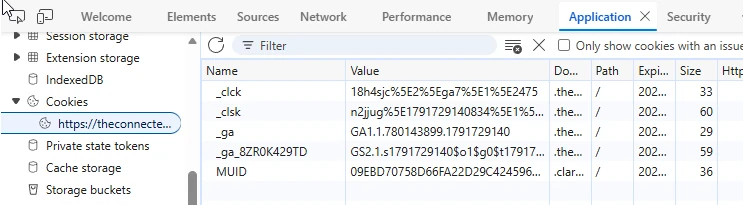
A Cookie settings button allows them to change their choice later. If they withdraw consent after Clarity has loaded, the code sends the denied signal, attempts to clear Clarity’s first-party cookies and reloads the page to unload the running script. The saved preference is treated as valid for 180 days. That is a choice made for this example, rather than a duration required by the Clarity API.

Before Adding The Code
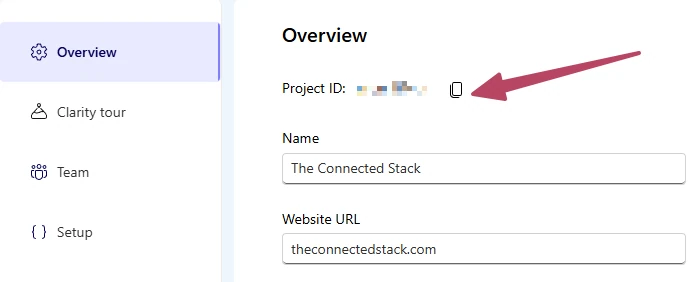
You will need your Clarity project ID, which you can find in your existing installation code. You should also configure your Clarity project to require cookie consent. This example includes the code that loads Clarity. Remove your existing Clarity installation snippet, or disable its existing tag in Google Tag Manager, before using it. Otherwise, the original installation could load Clarity before the visitor has accepted. If you already use a CMP, check its Clarity integration first. Adding a second consent implementation could create conflicting settings.
Add The HTML
The HTML provides the banner text and two equally visible choices. It also includes a Cookie settings button, which you can place in your footer. Update the privacy policy link to match your website. The wording should describe what you actually use Clarity for, including interaction recordings. Add this somewhere inside the page tag and update to match your own requirements.
<!-- Cookie consent banner -->
<section
  id="cookie-banner"
  class="cookie-banner"
  aria-labelledby="cookie-heading"
  hidden
>
  <h2 id="cookie-heading" tabindex="-1">Can we use analytics cookies?</h2>

  <p>
    We use Microsoft Clarity to understand how visitors use this website,
    including recordings of clicks, scrolling and navigation. You can
    accept or reject analytics and change your choice at any time.
    <a href="/privacy/">Privacy policy</a>
  </p>

  <div class="cookie-actions">
    <button type="button" id="accept-analytics">
      Accept analytics
    </button>

    <button type="button" id="reject-analytics">
      Reject analytics
    </button>
  </div>
</section>
You can use this code to add a button or link in to your footer navigation so that users can always get back to the cookie settings and approve or reject in the future if they wish.
<!-- Place this in your footer -->
<button
  type="button"
  id="cookie-settings"
  aria-controls="cookie-banner"
>
  Cookie settings
</button>
Style The Banner
The CSS gives the banner a simple layout, keeps it usable on smaller screens and provides visible keyboard focus styles. You can change the colours and spacing to fit your own website. Accept and Reject use the same styling in this example, giving visitors a clear choice without making one option harder to find.
.cookie-banner[hidden] {
  display: none;
}

.cookie-banner {
  position: fixed;
  right: 20px;
  bottom: 20px;
  left: 20px;
  z-index: 1000;
  box-sizing: border-box;
  max-width: 560px;
  max-height: calc(100dvh - 40px);
  margin-inline: auto;
  padding: 24px;
  overflow-y: auto;
  border: 1px solid #e8d7d5;
  border-radius: 14px;
  background: #fff;
  color: #29242a;
  box-shadow: 0 8px 30px rgb(0 0 0 / 15%);
  font-family: inherit;
}

.cookie-banner h2 {
  margin: 0 0 12px;
  font-size: 1.2rem;
}

.cookie-banner p {
  margin: 0;
  line-height: 1.6;
}

.cookie-banner a {
  color: #b84663;
}

.cookie-actions {
  display: flex;
  flex-wrap: wrap;
  gap: 12px;
  margin-top: 20px;
}

.cookie-actions button {
  flex: 1 1 180px;
  padding: 12px 18px;
  border: 1px solid #b84663;
  border-radius: 8px;
  background: #fff;
  color: #b84663;
  font: inherit;
  font-weight: 600;
  cursor: pointer;
}

.cookie-actions button:hover {
  background: #b84663;
  color: #fff;
}

#cookie-settings {
  padding: 6px;
  border: 0;
  background: transparent;
  color: #b84663;
  font: inherit;
  text-decoration: underline;
  cursor: pointer;
}

.cookie-banner :focus-visible,
#cookie-settings:focus-visible {
  outline: 2px solid #b84663;
  outline-offset: 4px;
}
Add The JavaScript
The JavaScript connects the buttons to the consent API, saves the preference and loads Clarity when permission has been given. Place it after the banner HTML, immediately before the closing </body> tag. Replace YOUR_CLARITY_PROJECT_ID with your own project ID. Include the implementation on every page where you want Clarity to run, usually through your website’s shared layout or template.
<script>
  (() => {
    const projectId = "YOUR_CLARITY_PROJECT_ID";
    const storageKey = "clarity-consent-v1";
    const preferenceLifetime = 180 * 24 * 60 * 60 * 1000;

    const banner = document.getElementById("cookie-banner");
    const settings = document.getElementById("cookie-settings");
    const heading = document.getElementById("cookie-heading");

    let choice = null;
    let clarityLoaded = false;

    // Create a queue so consent can be sent before Clarity loads.
    window.clarity = window.clarity || function () {
      (window.clarity.q = window.clarity.q || []).push(arguments);
    };

    // Read a previous choice, if it is still valid.
    try {
      const saved = JSON.parse(localStorage.getItem(storageKey));
      const age = saved ? Date.now() - saved.savedAt : NaN;

      if (
        saved &&
        typeof saved.accepted === "boolean" &&
        Number.isFinite(age) &&
        age >= 0 &&
        age < preferenceLifetime
      ) {
        choice = saved;
      }
    } catch {
      // If storage is unavailable, ask again and keep Clarity blocked.
    }

    function sendConsent(accepted) {
      window.clarity("consentv2", {
        analytics_Storage: accepted ? "granted" : "denied",
        ad_Storage: "denied"
      });
    }

    function loadClarity() {
      if (clarityLoaded) return;

      clarityLoaded = true;

      const script = document.createElement("script");
      script.async = true;
      script.src =
        "https://www.clarity.ms/tag/" + encodeURIComponent(projectId);

      document.head.appendChild(script);
    }

    function clearClarityCookies() {
      // Remove Clarity's first-party cookies at the usual root path.
      const hostnameParts = location.hostname.split(".");
      const domains = [""];

      for (let i = 0; i < hostnameParts.length - 1; i++) {
        domains.push(hostnameParts.slice(i).join("."));
      }

      domains.push(location.hostname);

      for (const name of ["_clck", "_clsk"]) {
        for (const domain of domains) {
          document.cookie =
            name + "=; Max-Age=0; path=/;" +
            (domain ? " domain=" + domain + ";" : "");
        }
      }
    }

    function saveChoice(accepted) {
      choice = {
        accepted,
        savedAt: Date.now()
      };

      try {
        localStorage.setItem(storageKey, JSON.stringify(choice));
      } catch {
        // The choice still applies to this page.
      }

      sendConsent(accepted);
      banner.hidden = true;
      settings.focus();

      if (accepted) {
        loadClarity();
      } else {
        clearClarityCookies();

        // Reload to unload Clarity if it was already running.
        if (clarityLoaded) {
          location.reload();
        }
      }
    }

    document.getElementById("accept-analytics")
      .addEventListener("click", () => saveChoice(true));

    document.getElementById("reject-analytics")
      .addEventListener("click", () => saveChoice(false));

    settings.addEventListener("click", () => {
      banner.hidden = false;
      heading.focus();
    });

    // Keep other open tabs in sync with a changed preference.
    window.addEventListener("storage", (event) => {
      if (event.key === storageKey || event.key === null) {
        location.reload();
      }
    });

    const accepted = choice?.accepted === true;
    sendConsent(accepted);

    if (accepted) {
      loadClarity();
    } else {
      clearClarityCookies();
    }

    banner.hidden = choice !== null;
  })();
</script>
The code creates a small queue for Clarity commands before its tracking script loads. This means the consent choice can be queued first and processed when Clarity starts. On subsequent page loads, the saved preference is checked again. If it is still valid and analytics was accepted, the consent signal is passed and Clarity loads automatically.
Test Acceptance And Withdrawal
Start with a fresh private browser window and open your browser’s developer tools. Before making a choice, check both the cookies and the Network panel: Clarity should not load, and its cookies should not be created. Accept analytics and check again. You should see Clarity load and its first-party cookies appear:
_clckhelps Clarity recognise the browser._clskconnects page views into a session recording.
Navigate between a few pages to check that the saved choice is respected. You can then review the resulting recording in Clarity to see whether those pages appear in the same session. Finally, use the Cookie settings link you added to your footer to reject analytics. The page should reload, the first-party cookies should be removed and Clarity should remain blocked on refresh.
Remember Your Other Tracking Tools
This example controls Clarity only. If you also use Google Analytics, advertising pixels or other tracking services, they need to respect the visitor’s choice too. In my own implementation, I delay the Google Tag Manager container until analytics is accepted because it contains both GA4 and Clarity. That is a different setup from the Clarity-only example here, and would need more consideration if the same container also ran essential website functionality.
Your privacy information should also explain the tools you use, what they collect and how visitors can change their preferences. A working banner needs to match the behaviour of the website behind it.
Check The Setup You Already Have
If you installed Clarity a while ago, it is worth checking how your website passes consent today. Recordings can still appear even when the session information is limited, so a busy dashboard does not necessarily mean you are seeing complete visits.
A lightweight custom banner can be a practical option for a simple setup. Whether you use your own code or a CMP, the important step is making sure the visitor’s choice reaches Clarity—and testing that both acceptance and withdrawal work. And if you want to see this in action, you can check out how I did it on The Connected Stack website. The banner should show immediately when you visit the site.
Discussion
Loading comments…
Join the discussion
Have a question or something to add? I'd love to hear from you. All comments are reviewed before appearing on the site.